Defraggler 2.23.993 – Efficient Disk Defragmentation Tool for Windows Systems
Defraggler 2.23.993 is a reliable and lightweight disk defragmentation utility designed to optimize hard drive performance by reorganizing fragmented data. Developed to provide greater control than built-in Windows defragmentation tools, Defraggler allows users to defragment entire drives or specific files, helping systems run faster and more efficiently.
While modern systems increasingly rely on solid-state drives, traditional hard disk drives remain widely used, especially in older systems and high-capacity storage setups. Defraggler continues to serve as an effective solution for maintaining HDD performance by reducing fragmentation and improving data access speeds. Version 2.23.993 focuses on stability, compatibility, and dependable performance for everyday users and professionals.
This article explores Defraggler 2.23.993 in detail, covering its features, interface, performance benefits, safety considerations, and practical use cases.
1. Overview of Defraggler
Defraggler is a disk optimization tool specifically designed for Windows systems using mechanical hard drives. Fragmentation occurs when files are stored in scattered locations across a disk, leading to slower read and write speeds. Defraggler addresses this issue by reorganizing file fragments into contiguous blocks.
Unlike standard defragmentation utilities, Defraggler provides users with detailed information about disk fragmentation and allows selective defragmentation of individual files or folders.
2. What’s New in Version 2.23.993
Defraggler 2.23.993 is a maintenance-focused update emphasizing compatibility and reliability.
Key improvements include:
-
Improved compatibility with modern Windows versions
-
Enhanced stability during long defragmentation sessions
-
Better handling of large hard drives
-
Bug fixes and performance refinements
-
Improved disk analysis accuracy
These improvements ensure dependable operation on a wide range of systems.
3. User Interface and Ease of Use
3.1 Simple and Clean Design
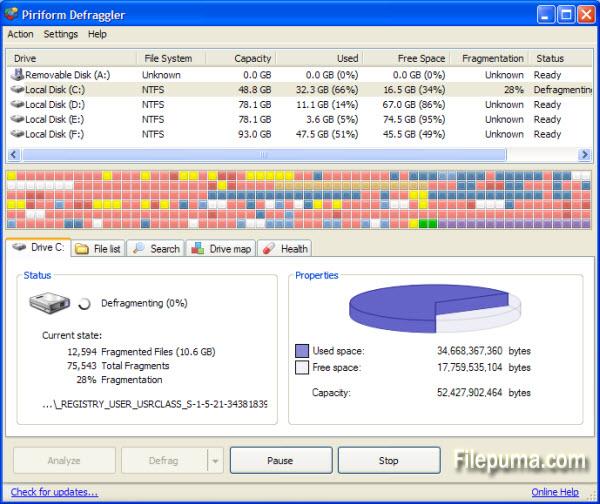
Defraggler features a straightforward interface that displays all essential information clearly. Upon launching the software, users can immediately view connected drives, fragmentation levels, and disk health indicators.
3.2 Visual Fragmentation Map
The color-coded block map provides a visual representation of disk fragmentation, helping users understand which areas of the drive need optimization.
3.3 Beginner-Friendly Controls
With one-click analysis and defragmentation options, Defraggler is easy to use even for users with limited technical experience.
4. Disk Analysis and Fragmentation Detection
4.1 Quick Disk Analysis
Defraggler quickly analyzes drives to determine fragmentation levels and file distribution.
4.2 Detailed File Information
Users can view which files are fragmented, their size, and their location on the disk.
4.3 Fragmentation Percentage
The software provides a clear fragmentation percentage, making it easy to decide when defragmentation is necessary.
5. Full Drive Defragmentation
Defraggler 2.23.993 allows users to defragment entire drives efficiently.
Benefits include:
-
Faster file access
-
Reduced disk head movement
-
Improved system responsiveness
-
More efficient data storage
This is especially beneficial for older systems and heavily used drives.
6. File-Level Defragmentation
One of Defraggler’s standout features is file-level defragmentation.
6.1 Selective Optimization
Users can defragment specific files or folders instead of the entire drive.
6.2 Time-Saving Approach
This feature saves time by optimizing only critical files, such as large media files or frequently used applications.
7. Boot-Time Defragmentation
Some system files cannot be moved while Windows is running.
7.1 Boot-Time Mode
Defraggler offers boot-time defragmentation to optimize system files before Windows loads.
7.2 System Performance Benefits
Defragmenting system files can result in faster boot times and improved overall performance.
8. Safety and Data Protection
Defraggler is designed with safety in mind.
8.1 Read-Write Safety Mechanisms
The software uses safe file-moving techniques to minimize the risk of data loss.
8.2 File Integrity Preservation
Defraggler ensures files remain intact during defragmentation.
8.3 Stable Execution
Version 2.23.993 improves stability during extended defragmentation sessions.
9. HDD vs SSD Considerations
Defraggler is primarily intended for traditional HDDs.
9.1 HDD Optimization
Mechanical drives benefit significantly from defragmentation due to physical disk movement.
9.2 SSD Awareness
Defraggler recognizes solid-state drives and avoids unnecessary defragmentation, as SSDs do not benefit from this process.
10. Performance and System Impact
Defraggler 2.23.993 is designed to operate efficiently.
Performance highlights include:
-
Low CPU usage
-
Minimal memory consumption
-
Smooth background operation
-
Option to pause or stop tasks
Users can run defragmentation without significantly affecting system usability.
11. Scheduling and Automation
11.1 Scheduled Defragmentation
Users can schedule defragmentation tasks to run automatically during idle times.
11.2 Maintenance Planning
Scheduled tasks help maintain consistent performance without manual intervention.
12. Compatibility and System Support
Defraggler 2.23.993 supports:
-
Windows 10
-
Windows 11
-
32-bit and 64-bit systems
-
Desktop and laptop computers
It works reliably across various hardware configurations.
13. Use Cases for Defraggler 2.23.993
Home Users
Improving everyday system performance.
Gamers
Reducing load times for large game files stored on HDDs.
Office Systems
Maintaining responsiveness on work computers.
Legacy Systems
Optimizing older machines with mechanical drives.
14. Advantages of Defraggler 2.23.993
-
Easy-to-use interface
-
File-level defragmentation
-
Boot-time optimization
-
Visual fragmentation map
-
Lightweight and efficient
-
Safe for HDD optimization
15. Comparison with Built-In Windows Defragmenter
Compared to Windows’ default tool, Defraggler offers:
-
Greater user control
-
Selective file defragmentation
-
Visual disk analysis
-
More detailed reporting
This makes it a preferred choice for users seeking advanced optimization options.
16. Best Practices for Using Defraggler
-
Defragment HDDs regularly but not excessively
-
Avoid defragmenting SSDs
-
Run defragmentation during idle periods
-
Back up important data before major maintenance
17. Limitations to Consider
While effective, Defraggler has some limitations:
-
Not suitable for SSD optimization
-
Focused primarily on defragmentation
-
Does not replace disk health monitoring tools
18. Final Verdict
Defraggler 2.23.993 remains a dependable and efficient disk defragmentation solution for Windows systems using traditional hard drives. Its selective defragmentation capabilities, user-friendly interface, and low system impact make it an excellent choice for maintaining HDD performance.
For users looking to optimize mechanical drives and extend the usable life of older systems, delivers reliable performance improvements through effective disk defragmentation.
CrystalDiskInfo 9.2.2.2026 Pre-Activated For Window